Backups & Archives
One place to protect everything you've built in TradeScope — a portable backup for disaster recovery, and permanent archives that keep finished accounts reviewable forever, even after NinjaTrader forgets them.
A backup is your safety net; an archive is your history
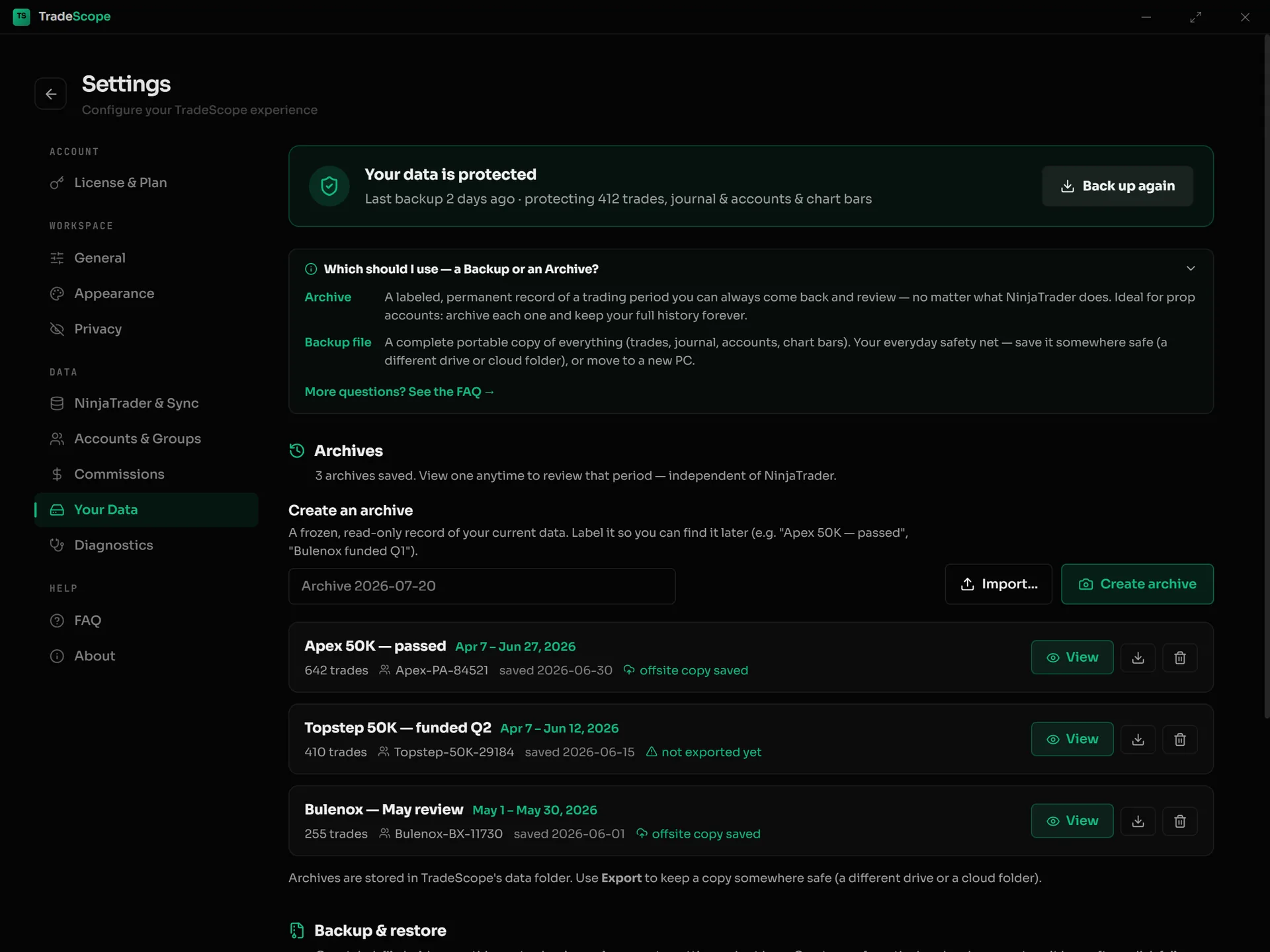
Settings → Your Data — the backup status card up top, your archives below, each with View / Export / Delete.
TradeScope keeps both under Settings → Your Data. They solve two different problems, so it helps to know which one you want:
Backup
One portable .tsbak file holding a complete copy of everything — trades, journal, accounts, settings, and (optionally) your chart bars. Use it after a disk failure or when moving to a new PC.
Archive
A labeled, permanent snapshot of one trading period that lives inside TradeScope. Open it any time to review that period — even years later, even if NinjaTrader's database has since been reset.
Prop firm rule of thumb: back up regularly so a dead drive never sets you back, and archive each evaluation or funded account when it ends so your full trading history stays reviewable no matter what happens to NinjaTrader.
Making a backup
Open Settings → Your Data. The panel at the top tells you at a glance whether your data is protected and when you last backed up. Press Back up now (it reads Back up again once you've made one) and choose where to save the file.
- ▸The file is named for you — something like TradeScope-backup-2.3.0-2026-07-06.tsbak — so you can keep several and always know which is which.
- ▸Include chart bars is optional. Leaving it on makes a truly complete copy; turning it off makes a much smaller file, since chart bars can always be re-read from NinjaTrader later.
Save it somewhere other than your main drive. A backup sitting next to the original data disappears in the same disk failure it was meant to survive — a second drive, a USB stick, or a cloud folder (Dropbox, OneDrive, Google Drive) is the point. In Settings → Your Data you can also set a default backup folder so you don't have to think about it each time.
Restoring a backup
In Settings → Your Data, find Restore from a backup file and click Choose File…. TradeScope inspects the file first and shows you exactly what's inside before anything changes:
- ▸Which version of TradeScope created it, and when.
- ▸How many trades (and how many of those are manual entries), how many journal days, and the date range it covers.
If it's the right file, click Restore this backup… and confirm. TradeScope then replaces all current data with the backup and restarts.
A restore can't leave you worse off. Before it touches anything, TradeScope saves a safety copy of your current data — if a restore ever failed partway through, it rolls back to that copy automatically. And restoring never touches NinjaTrader: TradeScope only ever reads NinjaTrader's database, in every feature.
Archiving a finished account
NinjaTrader keeps your execution history — including finished prop firm accounts — in one local file on one machine. A database reset (a common NinjaTrader support fix), a reinstall, a new PC, or file corruption wipes it with no way back. An archive is your independent copy: once a period is archived, it stays in TradeScope no matter what happens upstream.
In Settings → Your Data, click Create an archive, give it a label you'll recognize later — for example Apex 50K — passed or Bulenox funded Q1 — and TradeScope freezes that period's trades into a permanent snapshot.
What's inside an archive: only the raw trading executions for that period, plus the contract details needed to price them. When you view it, TradeScope re-pairs the trades with the same engine it uses live, so the numbers match exactly what you saw at the time. Your license key, journal, and settings are deliberately not included — an exported archive file is nothing but trade data.
Reviewing, exporting, and moving archives
- ▸View drops you onto the Dashboard for that archived period, with every page — Dashboard, Calendar, Trade Log, Reports — showing the archived data instead of live. A banner stays visible the whole time so archived P&L is never mistaken for current, and Back to live returns everything exactly as you left it, including your previous date filter. Viewing is completely read-only.
- ▸Export writes the archive to a portable .tsarchive file you can store offsite or move to another machine — and Import… brings one back in.
- ▸Delete is a deliberate two-step. If no offsite copy exists yet, TradeScope warns you and offers to Export first… before the period is gone for good.
Keep a copy somewhere safe. Archives live in TradeScope's own data folder, so a full backup includes them — but they're only as safe as that one folder until you Export. Turn on automatically save a copy of each new archive to a backup folder and every archive gets an offsite copy the moment you create it.
The automatic safety net
You don't have to catch a NinjaTrader reset yourself. If TradeScope ever notices NinjaTrader's data has suddenly shrunk dramatically — the tell-tale sign of a reset or a pointed-at-the-wrong-database mistake — it pauses syncing before overwriting anything and shows a banner across the top of the app:
“NinjaTrader's data looks much smaller than before. Syncing is paused — nothing has been overwritten.”
From there you choose: Restore from a backup if it was a mistake, or NinjaTrader really was reset — resume if the smaller data is expected. Nothing is lost while it waits for you. This is exactly why keeping a recent backup — and archiving finished accounts — is worth the two minutes.
Questions about protecting your data?
Reach out any time — we're happy to walk you through a backup or a restore.