Chart Data
How TradeScope charts your trades using NinjaTrader's own minute data, why a chart can come up empty, and how to fill in missing history for any contract — including expired ones.
Where chart data comes from
TradeScope's candlestick charts are built from NinjaTrader's own downloaded historical minute data, already on your machine. There's no separate market-data subscription, no extra login, and TradeScope never modifies NinjaTrader's files — it reads them, then keeps its own copy in a local cache.
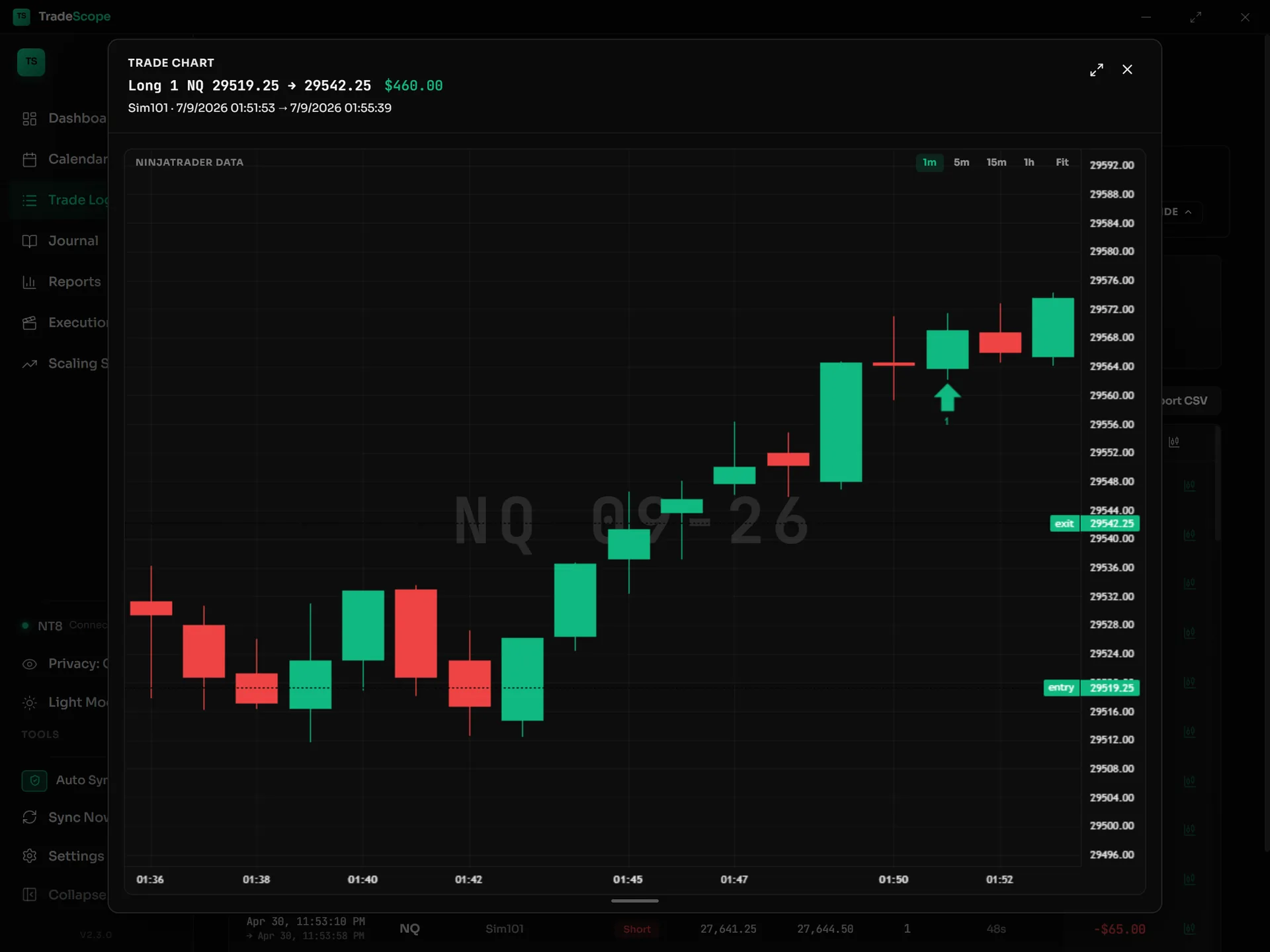
A trade charted from NinjaTrader's own minute data — entry and exit marked, price levels drawn.
That cache matters: once TradeScope has read a day's bars, they keep charting forever — even if your data provider later purges that history or you clean up NinjaTrader's database.
The flip side: TradeScope can only chart what NinjaTrader has downloaded. NinjaTrader only stores minute data for instruments you've actually opened a chart on — so older trades often need a one-time download first. That's what the rest of this guide covers.
Why a chart can be empty
Two reasons, and both are fixable:
- ▸You never charted that contract in NinjaTrader. No chart opened = no minute data downloaded = nothing for TradeScope to read.
- ▸The trade was on an expired contract. Futures roll every quarter. A trade from last December didn't happen on today's front month — it happened on the contract that was live then, and that contract no longer shows up in NinjaTrader's instrument dropdown.
TradeScope tells you exactly which contract it needs. When a chart has no data, the empty state names the specific contract month (for example MGC 02-26) — including the roll-aware case where a December trade actually belongs to the February contract. You don't have to guess.
Downloading data for a contract
Four steps in NinjaTrader, one-time per contract:
- 1In NinjaTrader, open a new chart (New → Chart).
- 2Click on the chart and just start typing the contract name — for example MNQ 09-24 — then press Enter. This is the step that trips everyone up: the instrument dropdown only lists current contract months, but typing directly on the chart finds expired contracts too.
- 3In the Data Series window, set the type to Minute, value 1, and set “Days to load” far enough back to cover the dates you need. NinjaTrader downloads the history automatically when the chart opens.
- 4Back in TradeScope, open the chart again (or hit Refresh in the coverage table). The bars appear immediately.
How far back can you go? It depends on your data feed — feeds backed by Rithmic or CQG typically carry 10+ years of minute history; Kinetick carries about 2 years. If a date is older than your feed's history, no amount of downloading will bring it back — but everything TradeScope already cached stays chartable.
See everything you're missing at once
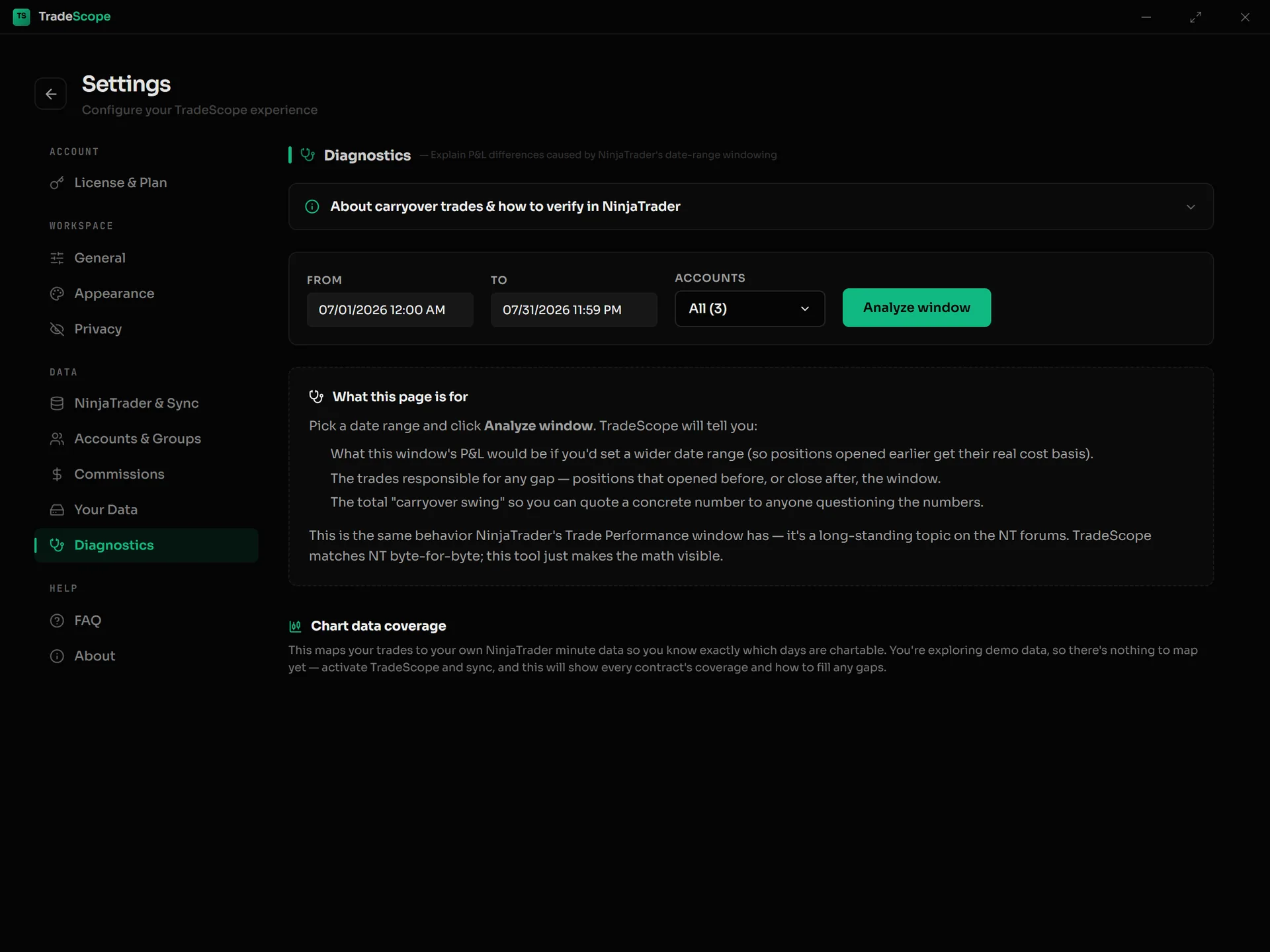
Settings → Diagnostics — the Chart data coverage section maps every trading day to the contract data it needs.
Instead of discovering empty charts one trade at a time, open Settings → Diagnostics → Chart data coverage. TradeScope scans every day you traded, works out which contract each day needs, and shows a table of exactly what's missing:
- ▸Open this in NT — the exact contract name to type on a NinjaTrader chart.
- ▸Chartable / Missing — how many of your trading days on that contract already have bars vs. still need them.
- ▸Days to load should reach — the date range your download needs to cover, so you can set “Days to load” correctly the first time.
Download a contract, hit Refresh, and watch its row clear. When the table is empty, every trade you've ever taken is chartable.
When a day won't fill in
Occasionally NinjaTrader's incremental download skips a range — you downloaded the contract, most days cleared, but a few stay listed as missing. Two fixes, in order:
- ▸Right-click the NinjaTrader chart → Reload All Historical Data. This forces a full re-download for the chart's range and usually clears stuck days.
- ▸Control Center → Tools → Historical Data → Download, requesting the exact missing date range for the contract.
If a day still won't fill after both, your data provider no longer carries it — that history is gone at the source, and no setting will recover it.
Still seeing an empty chart?
Send us the contract name from the empty-state message and we'll sort it out.